

Why Ubuntu Server Is the Smart Choice for Your Homelab (and Enterprise)
Before jumping into the steps, it is worth understanding why creating an Ubuntu Server on Proxmox deserves a place in your homelab and why it dominates enterprise environments worldwide.
Ubuntu Server is one of the most widely deployed Linux distributions in the world. According to Canonical, Ubuntu powers millions of production workloads across cloud providers like AWS, Google Cloud, and Azure. Enterprises trust it because it offers a predictable Long-Term Support (LTS) release cycle, with five years of security patches and updates per release. There are no surprises, no forced upgrades every few months.
Here is why Ubuntu Server is a genuinely excellent choice:
- Enterprise adoption: Companies like Netflix, Uber, and countless Fortune 500 firms run Ubuntu Server in production. Learning it in your homelab mirrors real-world environments.
- LTS stability: Ubuntu LTS releases (like 22.04 and 24.04) provide a stable, supported platform you can build on without constantly chasing updates.
- Massive community: If something breaks, someone has already solved it. Ubuntu has one of the largest Linux communities and documentation bases available.
- Proxmox compatibility: Ubuntu Server runs exceptionally well as a Proxmox virtual machine (VM), taking full advantage of VirtIO drivers for near-native disk and network performance.
- Free and open source: No licensing costs — perfect for homelabs and small businesses.
If you are building skills that translate directly to enterprise IT, DevOps, or cloud engineering, Ubuntu Server on Proxmox is one of the best environments to practice in.
What You Will Need Before You Start Creating an Ubuntu Server on Proxmox
- A working Proxmox VE installation (Refer to this guide on how to build your first homelab)
- A computer with internet access to download the Ubuntu ISO
- Basic familiarity with the Proxmox web UI
Step 1: Download the Ubuntu Server ISO to Your Local Computer
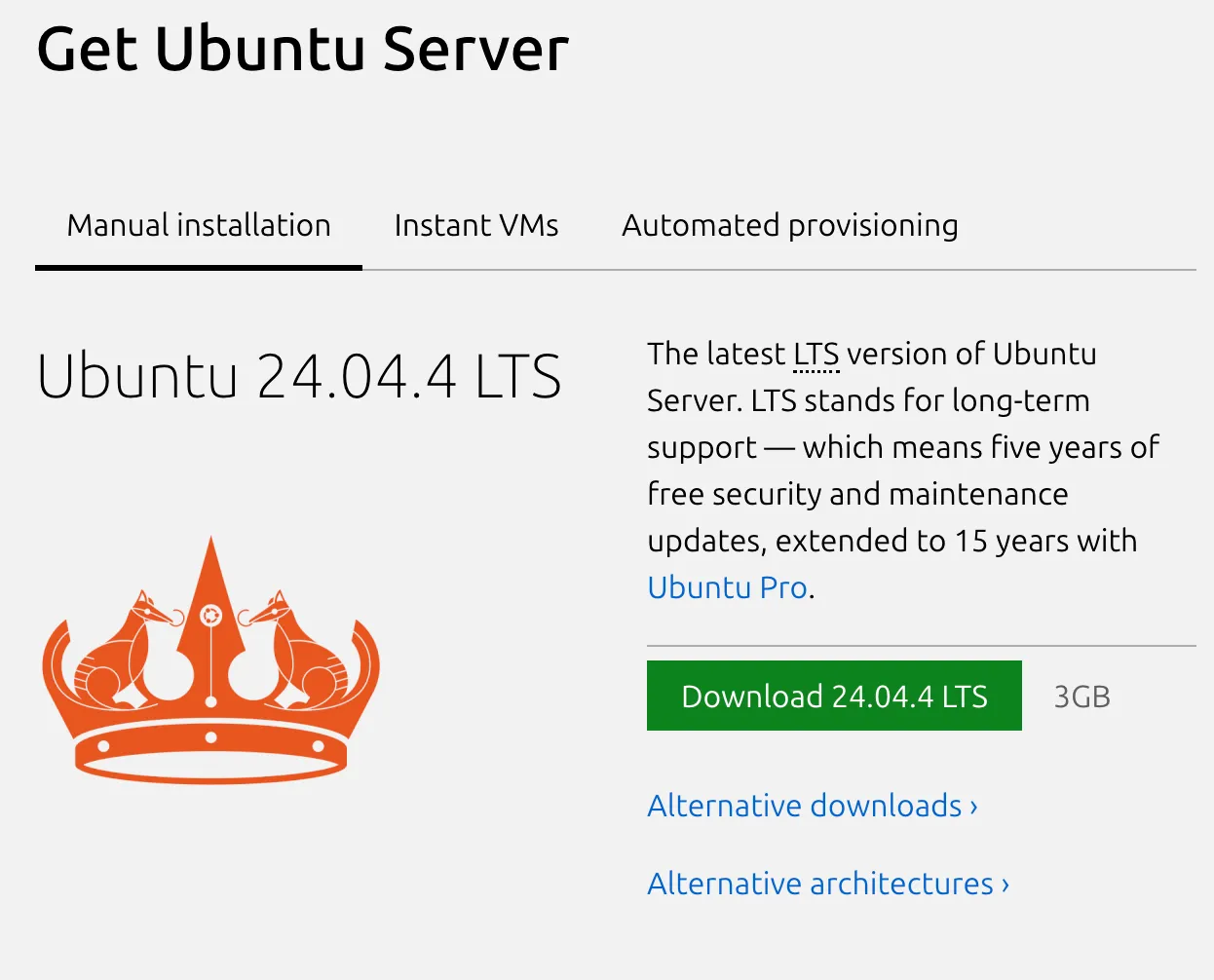
Head to the official Ubuntu website at ubuntu.com/download/server and download the latest LTS 64-bit ISO. At the time of writing, Ubuntu 24.04 LTS is the current long-term support release.
💡 Why LTS? Long-Term Support versions receive security and maintenance updates for five years, making them the right choice for any server — homelab or enterprise.
Always download from the official Ubuntu website to ensure you are getting a verified, unmodified image.
Step 2: Upload the Ubuntu ISO to Proxmox
Once the ISO is downloaded to your local machine, you need to get it into Proxmox so you can use it to build a VM.
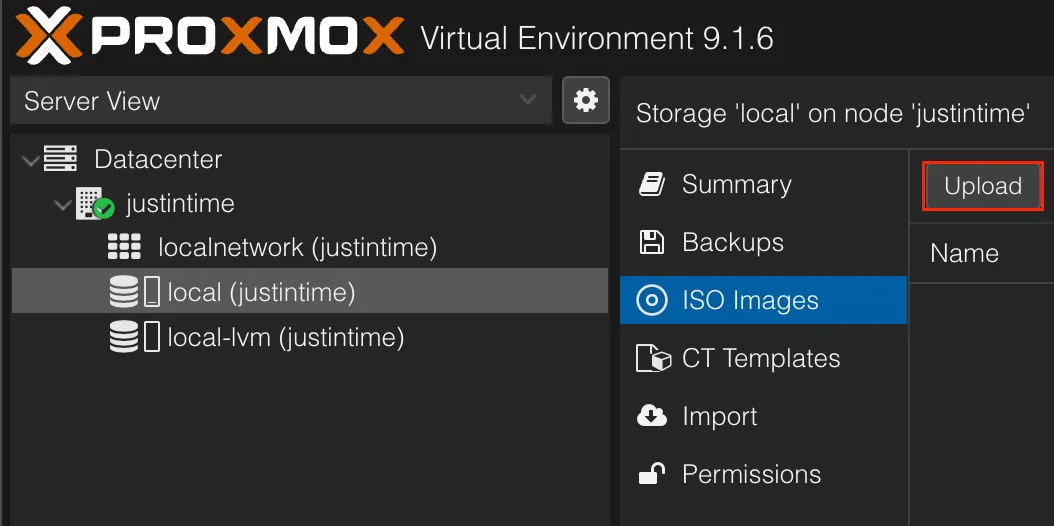
- Log into your Proxmox web UI (typically
https://<your-proxmox-ip>:8006) - In the left panel, click on local (PVE)
- Select ISO Images from the content tabs
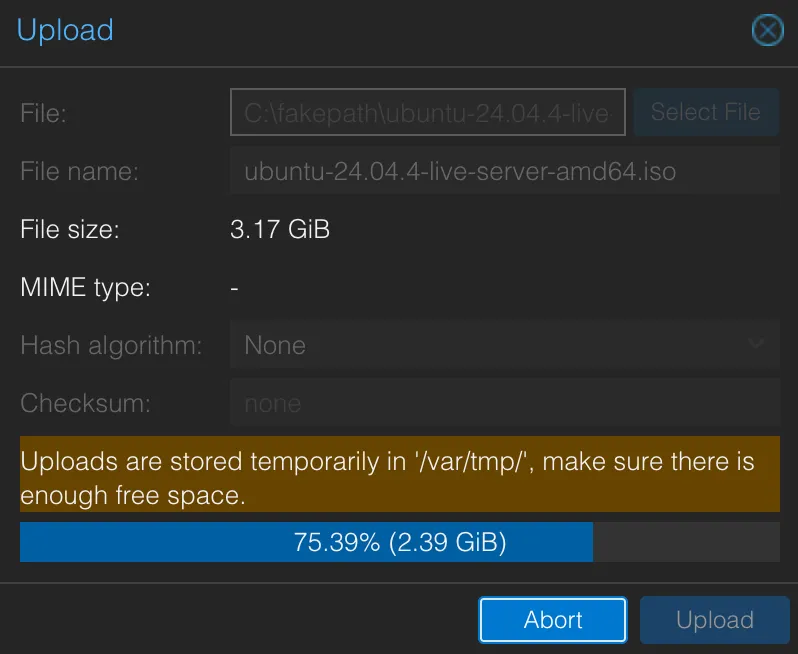
- Click Upload and select the Ubuntu ISO file you just downloaded
Proxmox will upload and store the ISO locally so it can be used to boot your new VM during installation.
Step 3: Create a New VM
With the ISO uploaded, it is time to create the virtual machine.
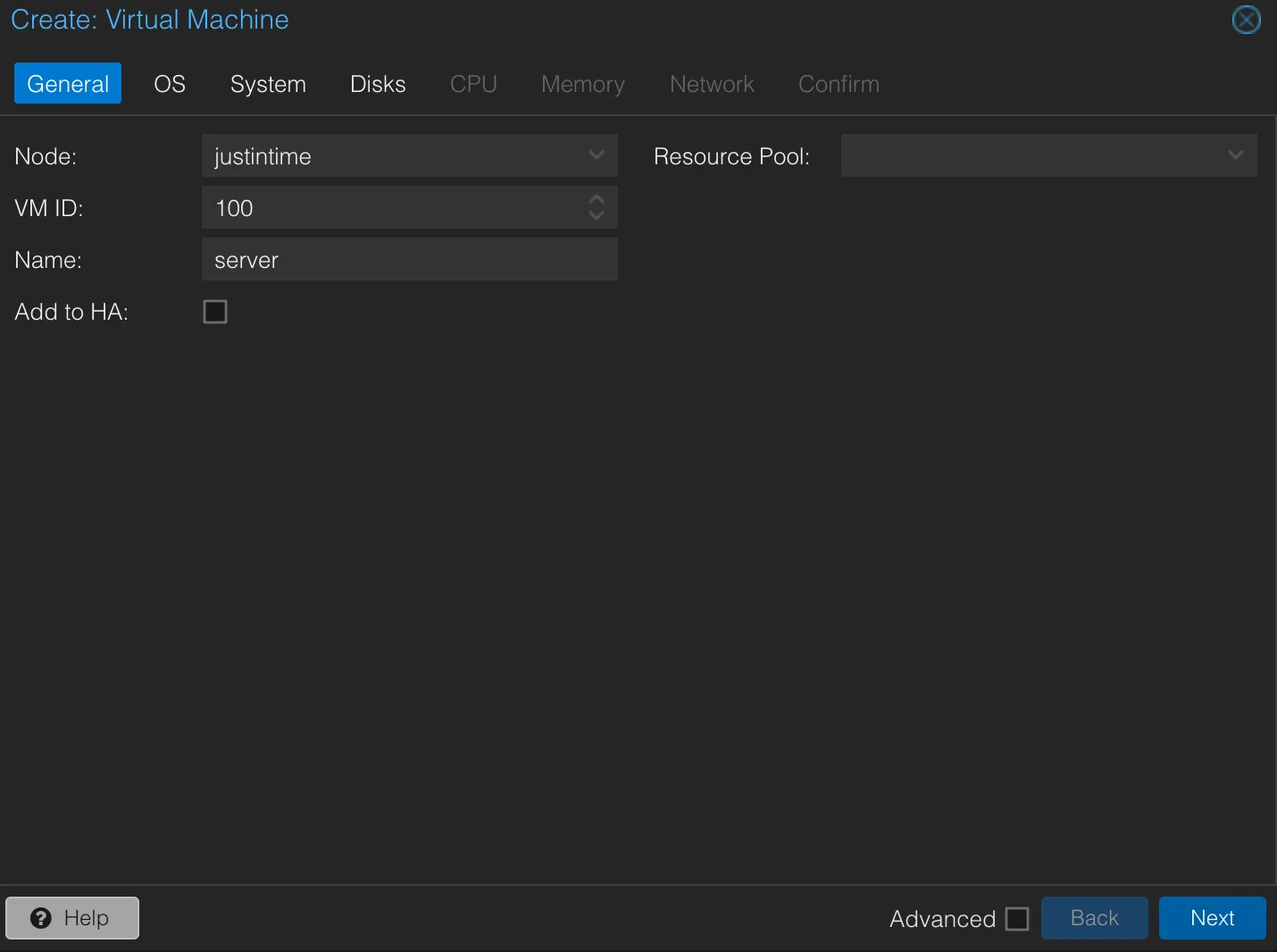
- Click the Create VM button in the top-right corner of the Proxmox interface
- On the General tab:
- Give your VM a descriptive Name (e.g.,
ubuntu-server) - Assign a VM ID (Proxmox auto-suggests one, which is fine to keep)
- Give your VM a descriptive Name (e.g.,
- Click Next
Step 4: Configure the OS Settings
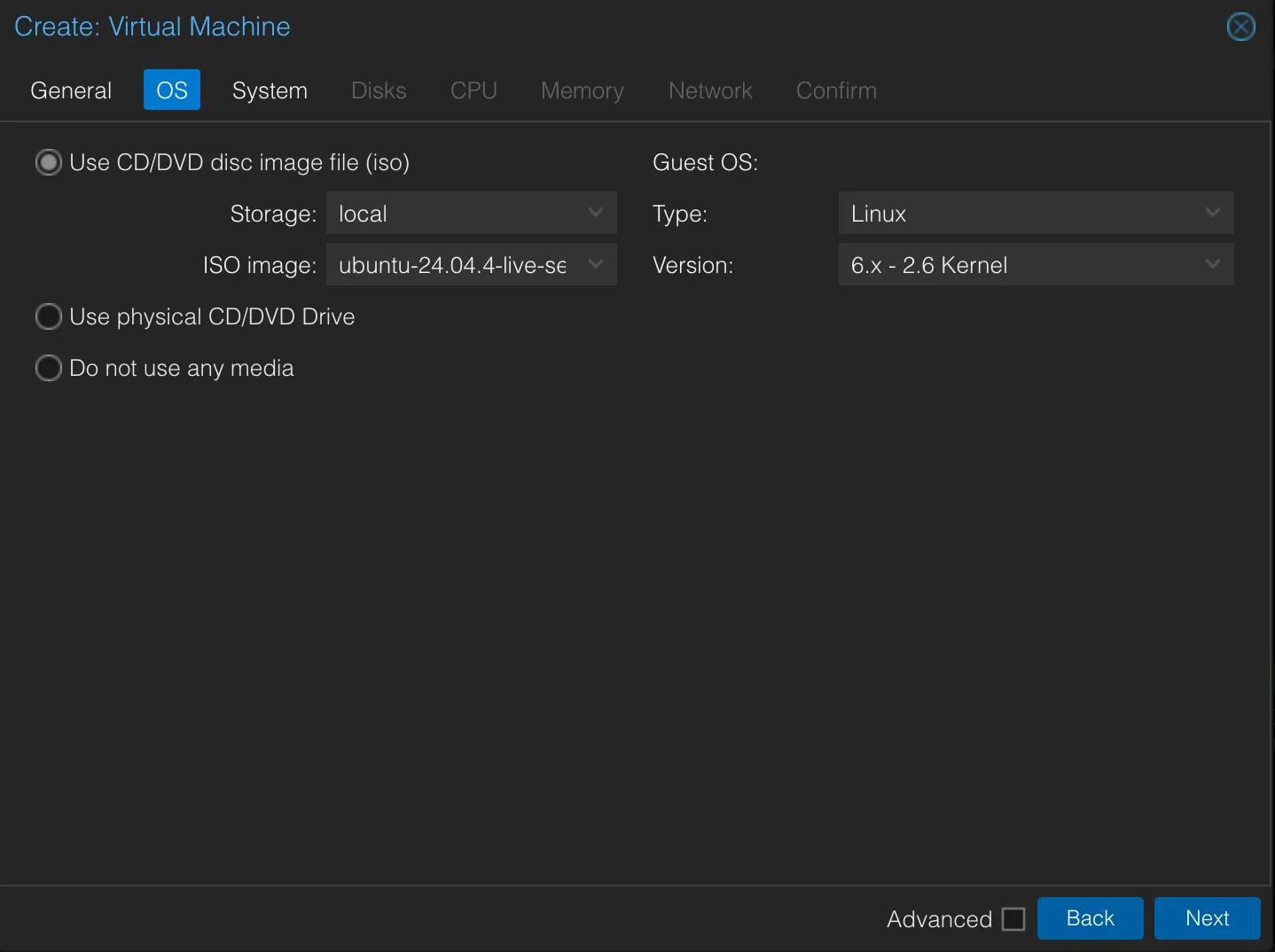
On the OS tab:
- ISO Image: Select the Ubuntu ISO you uploaded in Step 2
- Type: Linux
- Version: 6.x – 2.6 Kernel
These settings tell Proxmox what kind of guest OS this VM will run, which allows it to apply the right optimizations under the hood.
Click Next.
Step 5: System Settings — Leave the Defaults
On the System tab, the defaults work well for most setups:
- BIOS: SeaBIOS (default) is fine for the vast majority of use cases
- OVMF (UEFI): Optional — only needed if you specifically require UEFI boot
Unless you have a specific reason to change these, leave everything as-is and click Next.
Step 6: Configure the Disk
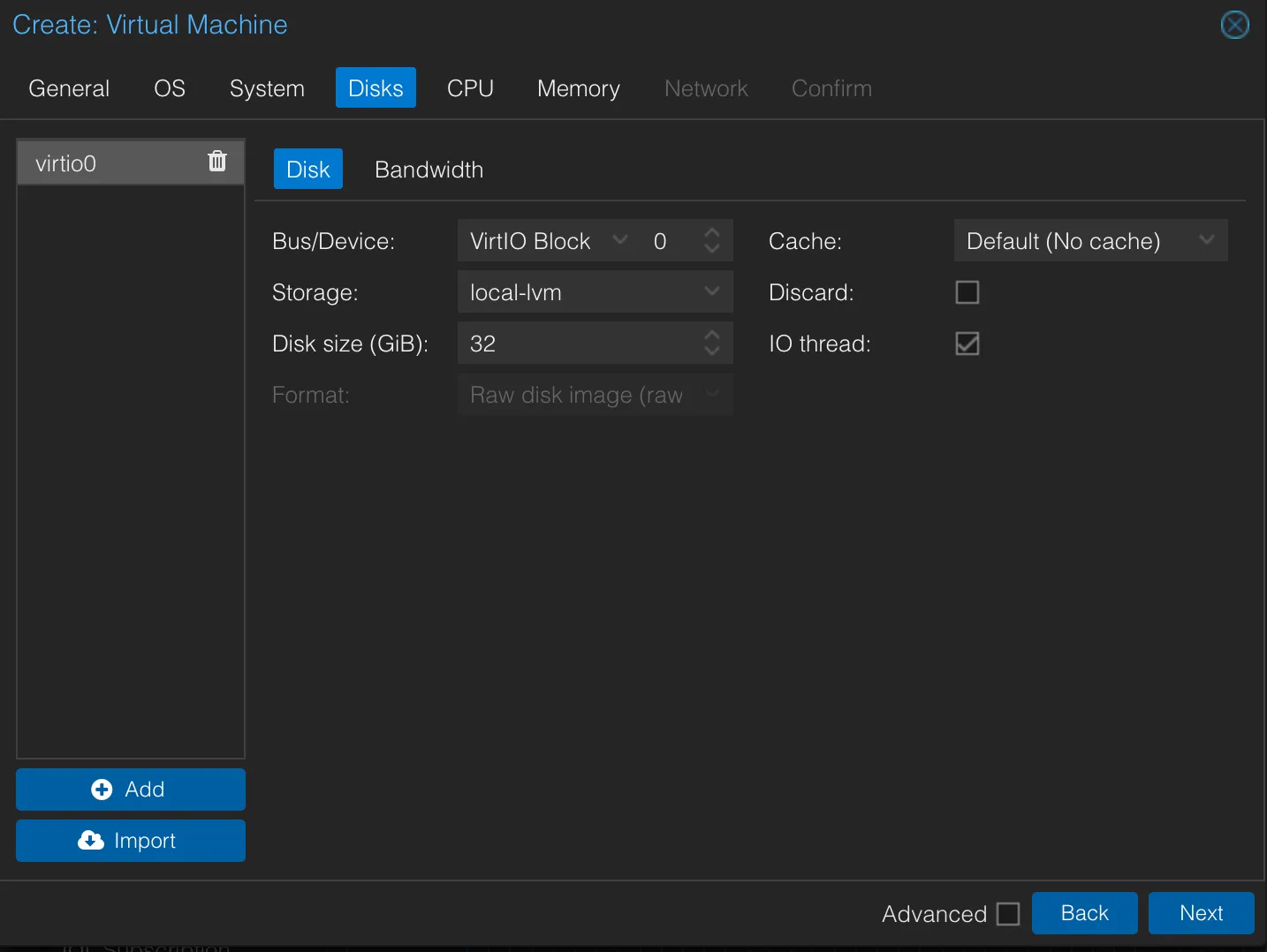
On the Disks tab:
- Set the disk size to at least 20GB (more if you plan to run services or store data)
- Set the Bus/Device to VirtIO Block
💡 Why VirtIO Block? VirtIO is a paravirtualized storage driver that allows the guest OS to communicate with the host more efficiently than emulated legacy drivers. In practice, this means significantly faster disk read/write speeds inside the VM.
Step 7: Configure the CPU
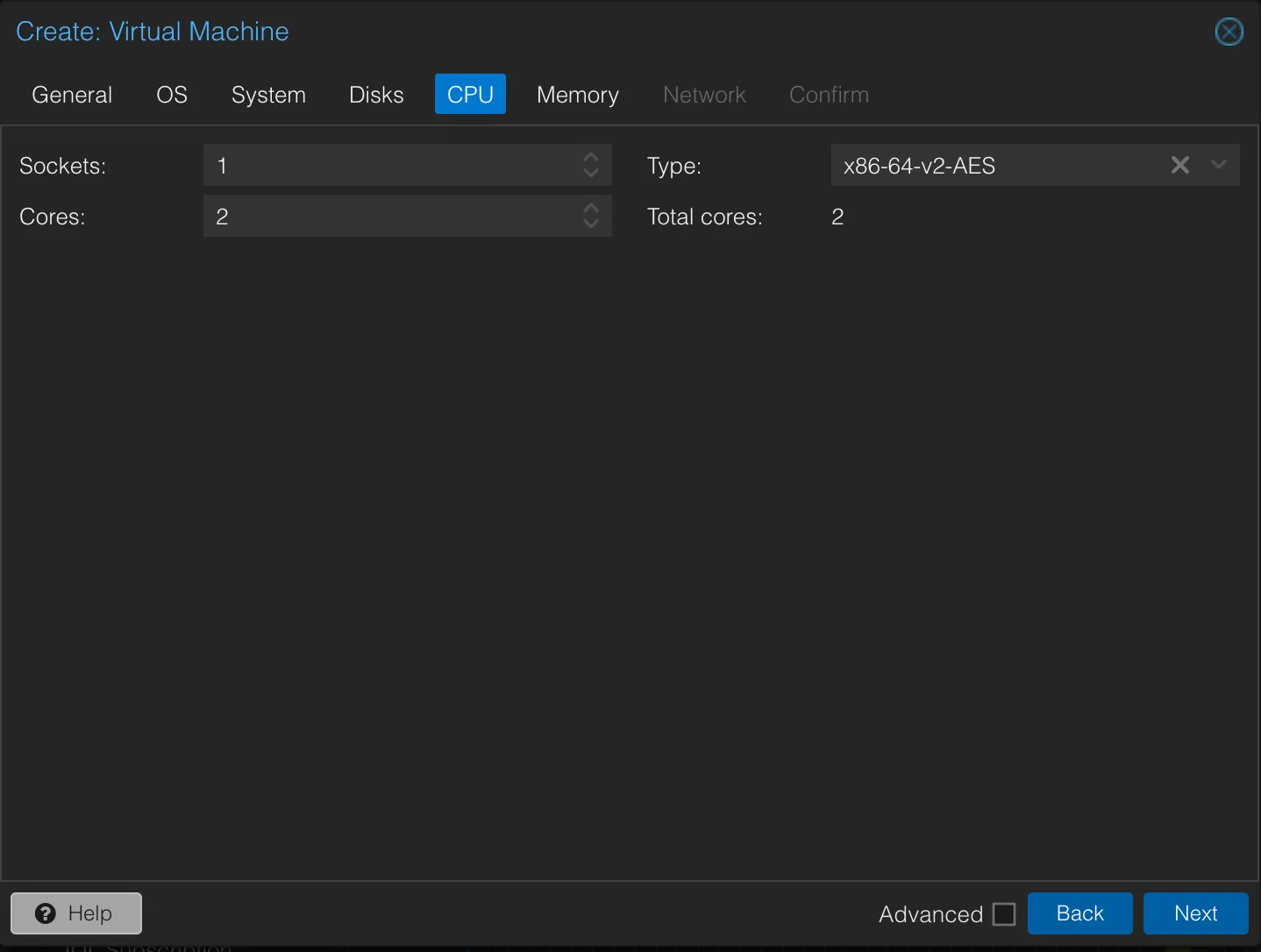
On the CPU tab:
- Set Cores to 2 as a good starting point for a general-purpose Ubuntu server
2 cores is plenty for most homelab workloads including web servers, Docker containers, and development environments. You can always increase this later without rebuilding the VM.
Step 8: Configure Memory
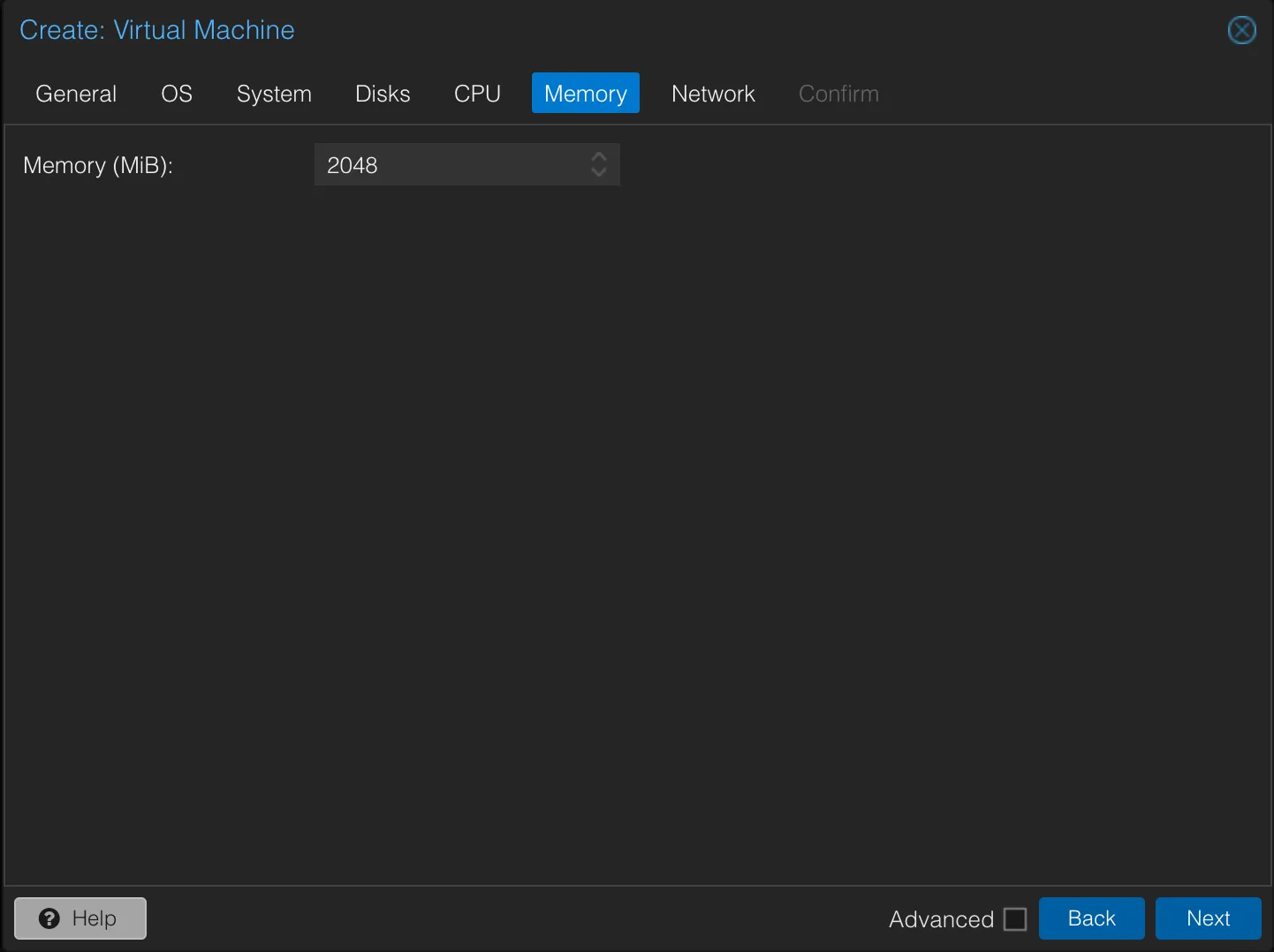
On the Memory tab:
- Set Memory to 2048 MB (2GB) at a minimum
For lightweight workloads, 2GB is workable. If you plan to run Docker, databases, or anything more demanding, 4096 MB (4GB) is a more comfortable starting point.
Step 9: Configure the Network
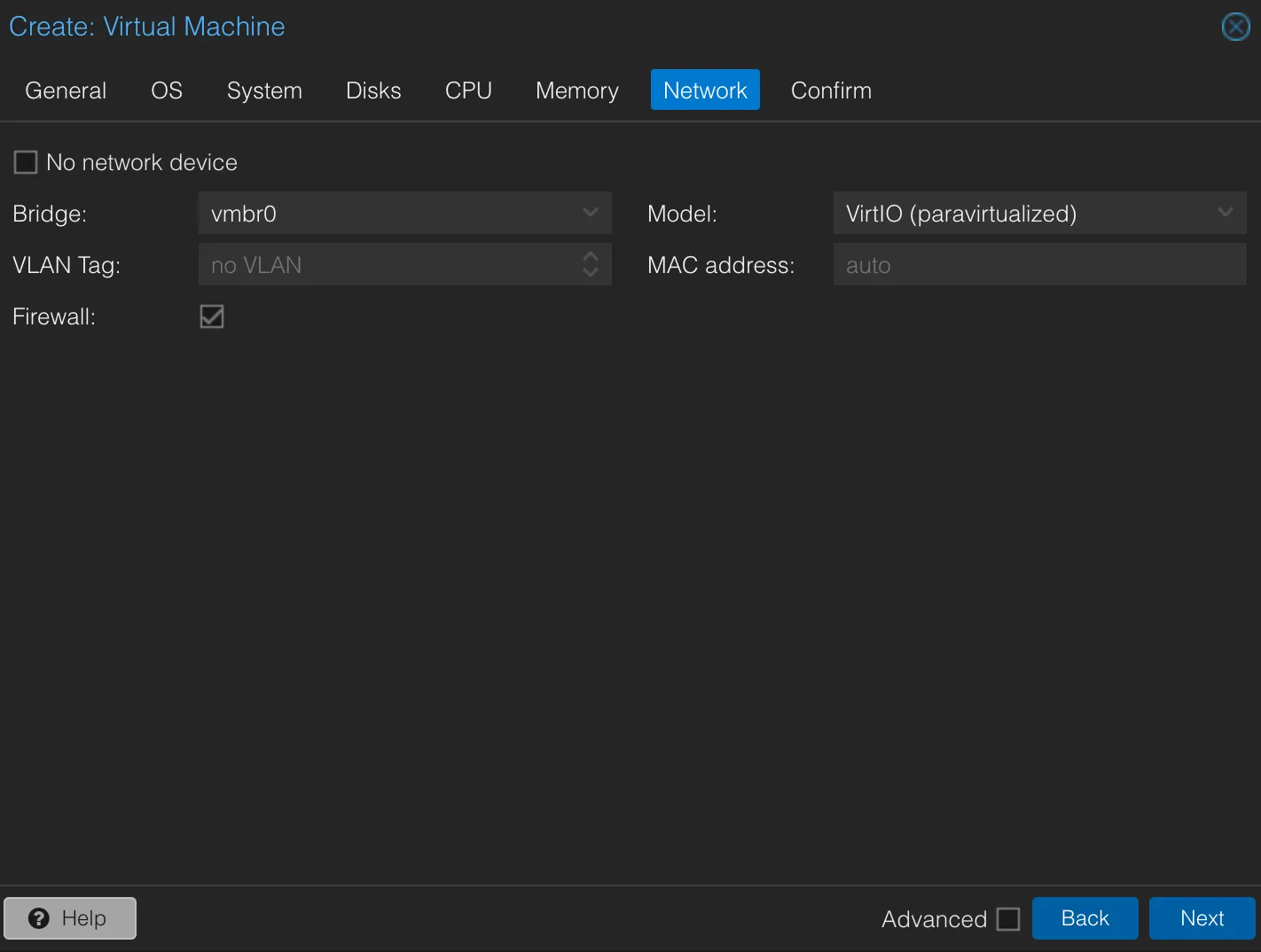
On the Network tab:
- Bridge:
vmbr0(this is the default bridge Proxmox creates; use it unless you have configured custom networking.) - Model:
VirtIO (paravirtualized)
💡 Why VirtIO for networking? Just like VirtIO Block for disks, VirtIO networking delivers noticeably better throughput and lower CPU overhead compared to emulated options like e1000. For a server you will be SSHing into and transferring files through, this matters.
Step 10: Confirm and Start the VM
On the final Confirm tab:
- Review your settings
- Check Start after created so the VM boots immediately after being built
- Click “Finish.”
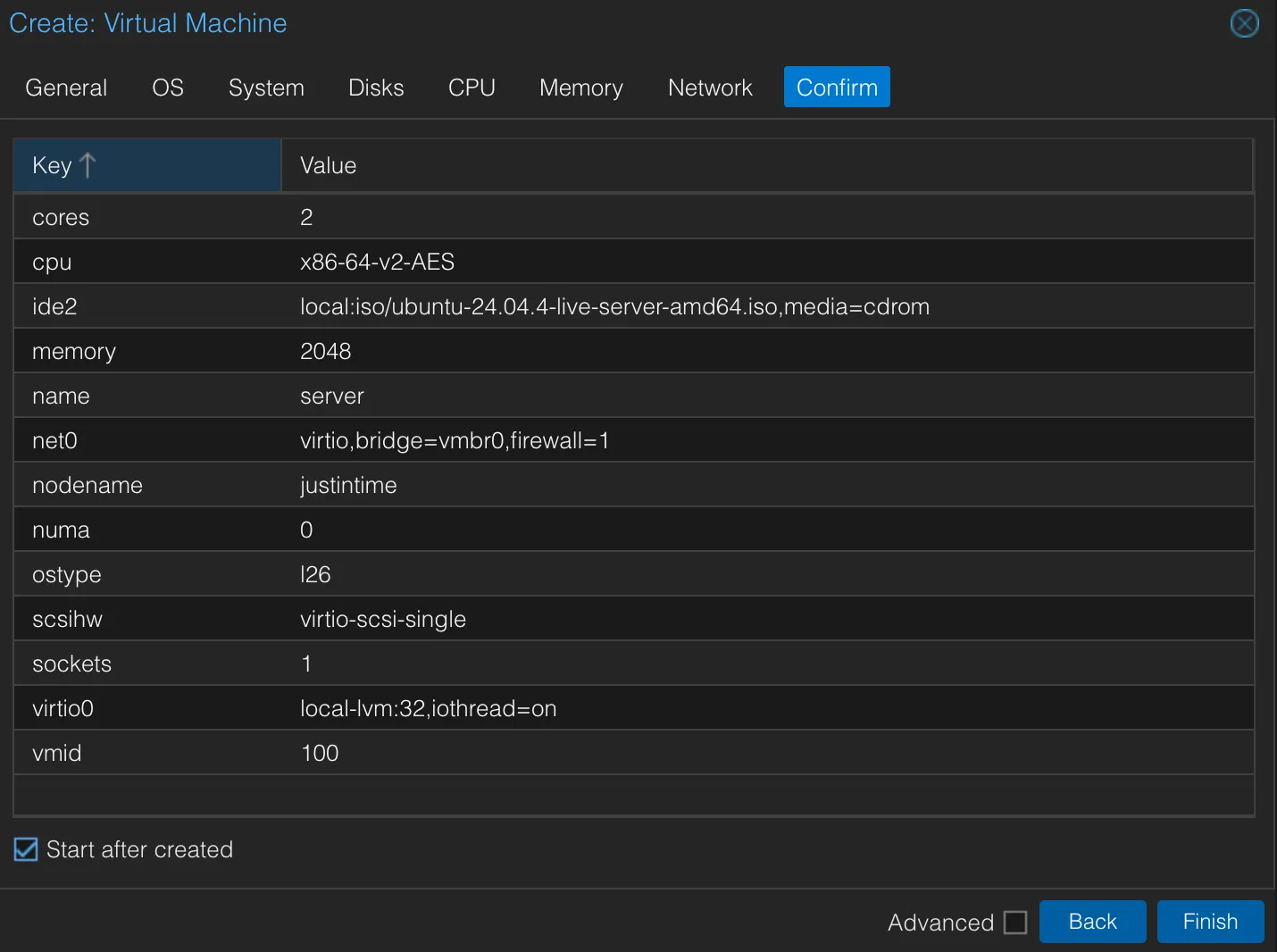
Proxmox will provision the VM and boot it from the Ubuntu ISO.
Step 11: Install Ubuntu Server
Once the VM starts, the Ubuntu Server installer will launch. Here is how to get through each screen:
Language and Keyboard
Choose your preferred language and keyboard layout. For most users, English and the default keyboard are fine.
Network Configuration
Ubuntu’s installer will attempt to configure networking automatically via DHCP. Let it do its thing — once it succeeds, make note of the IP address it receives. You will need this to SSH into the server later.
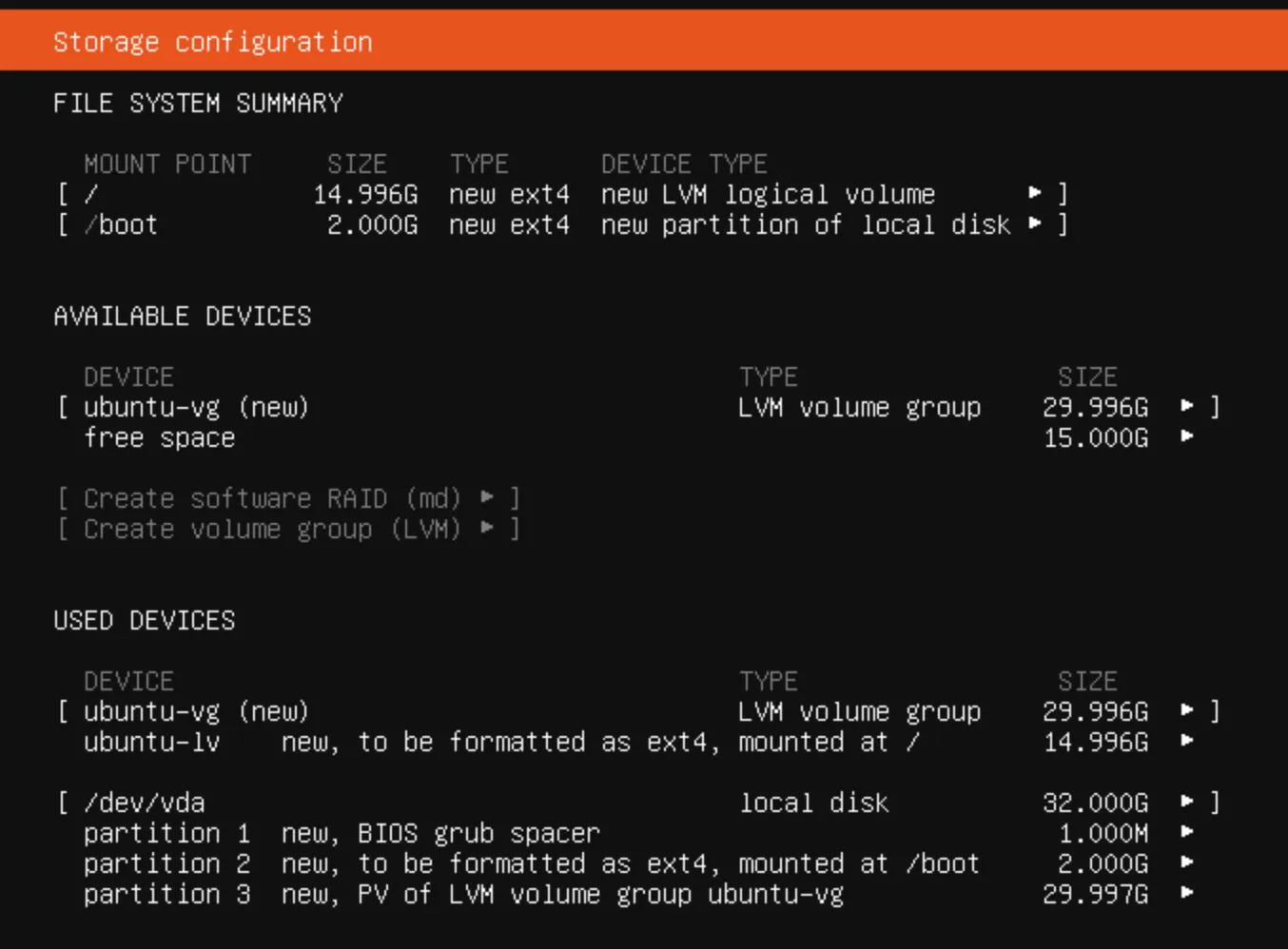
Storage Configuration
Select Use an entire disk (the default option). This is the simplest setup and appropriate for a dedicated VM.
Profile Setup
Fill in:
- Your name (display name)
- Server’s hostname (e.g.,
ubuntu-server) - Username (e.g.,
user) - Password
Choose a strong password and remember your username — you will use these to log in.
SSH Server
✅ Check “Install OpenSSH server” — this is critical.
Without OpenSSH, you will not be able to remotely connect to the server from another machine. This is how you will manage the server going forward, so do not skip it.
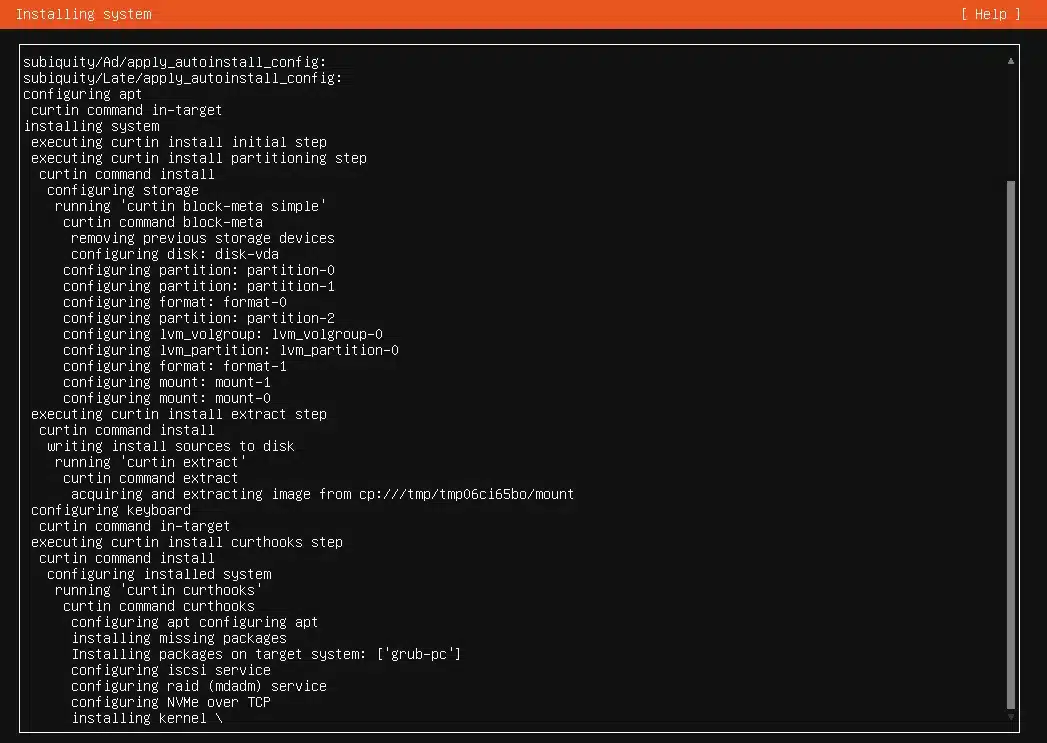
Let It Install
The installer will now copy files, set up packages, and configure the system. This typically takes a few minutes. When it is done, it will prompt you to reboot.
If the VM Will Not Reboot Cleanly
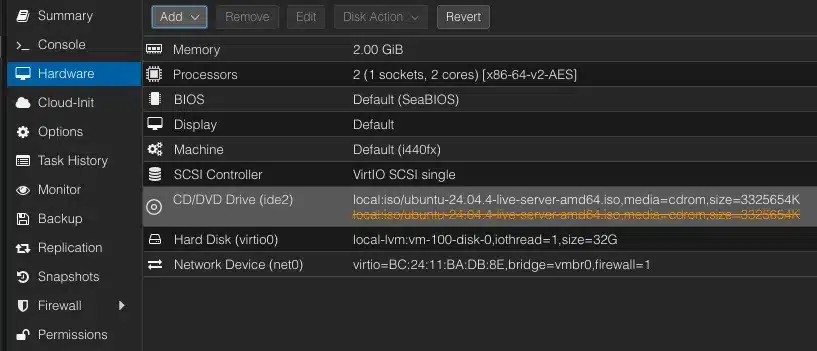
Sometimes after installation, the VM will fail to eject the virtual CD/DVD drive and get stuck. If this happens:
- In the Proxmox UI, click on your VM
- Go to the Hardware tab
- Select the CD/DVD Drive
- Click Remove (or set it to “Do not use any media”)
- Then start the VM again
Step 12: SSH Into Your New Ubuntu Server
Once the VM has rebooted into Ubuntu, it is time to connect to it from your local machine.
Open a terminal on your computer and run:
ssh username@<vm-ip-address>Replace username with the username you created during setup (e.g., user) and <vm-ip-address> with the IP address the installer reported during the network configuration step.
If everything is set up correctly, you will be prompted for your password and then dropped into a shell on your new Ubuntu Server all without touching the Proxmox console.
Step 13: Update the System
The very first thing you should always do on a fresh Ubuntu Server installation is update the package index and upgrade installed packages:
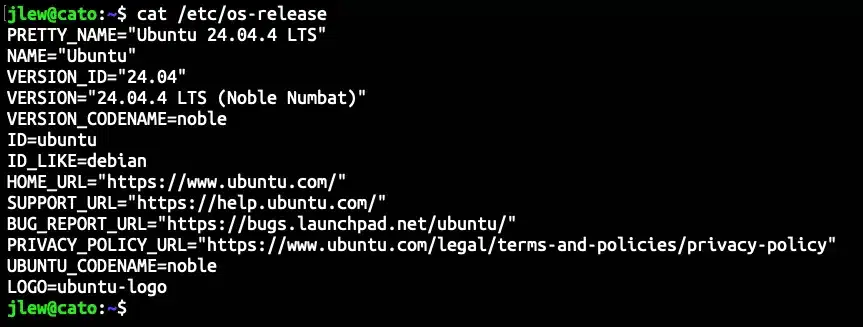
sudo apt update && sudo apt upgrade -yThis ensures you have the latest security patches and software updates from Ubuntu’s repositories before you start installing anything else. If you have successfully performed all of the steps correctly, you will now have an Ubuntu Server that you can use to perform many enterprise functions.
Optional: Upgrade Your Terminal Experience
If you spend a lot of time in the terminal and running servers means you will, it is worth investing in a better terminal emulator. WezTerm is a GPU-accelerated, highly customizable terminal that works on Windows, macOS, and Linux.
You can download it at wezterm.org/installation.html.
It supports features like split panes, tabs, ligatures, and full true-color support, making long SSH sessions noticeably more pleasant.
What’s Next?
Now that your Ubuntu Server is running on Proxmox and accessible via SSH, you have a solid foundation to build on. Here are some natural next steps depending on your goals:
- Set up a static IP so your VM always has the same address on your network
- Configure a firewall with
ufwto lock down access to only the ports you need - Install and configure Nginx or Apache if you want to run a web server
- Explore Ansible for automating configuration across multiple VMs
Each of these builds directly on what you have set up here, and all of them are skills that translate directly to real enterprise environments.
Wrapping Up
Creating an Ubuntu Server on Proxmox is one of the most valuable things you can do for your homelab. You now have a stable, enterprise-grade Linux server running in a fully isolated virtual machine ready to host services, run containers, or serve as a learning environment for real-world IT and DevOps skills.
The combination of Proxmox’s hypervisor capabilities and Ubuntu Server’s reliability and ecosystem support makes this setup genuinely powerful, whether you are running a single homelab node or eventually scaling up to a multi-server environment.
If this guide helped you, consider checking out the rest of the blog for more Homelab, System Administration, and DevOps walkthroughs.