

If you have been thinking about how to build your first homelab, you are already asking the right question — it is one of the most rewarding things you can do as someone interested in IT, networking, or systems administration. It gives you a real, hands-on environment to learn skills that take years to develop in a professional setting — all on your own schedule, with hardware you control. I have never met somone who said they regretted building a homelab, only people that wish they built it sooner!
This guide walks you through everything you need to get started: what hardware to look for, what a hypervisor is and which one to choose, and a practical list of services worth running in your lab. Whether you have a spare laptop, an old desktop, or a purpose-built mini PC, you can build a homelab that teaches you real-world skills.
We will keep things honest and practical. This is not a guide full of expensive shopping lists or opinions dressed up as facts. Every recommendation here is grounded in what actually works for beginners.
| Quick Summary: This guide covers the three core pillars of a first homelab: hardware selection, choosing and installing a hypervisor, and deciding what services to run. By the end, you will have a clear path forward regardless of your starting budget. |
What You Will Find in This Guide
Part 1: What Is a Homelab and Why Build One?
A homelab is simply a personal computing environment you build and manage at home. It can be as minimal as a single spare laptop running a Linux virtual machine, or as elaborate as a full rack of enterprise servers in your basement. What matters is that it belongs to you and you learn from it.
The term “homelab” is widely used in the IT community to describe any personal infrastructure used for learning, testing, and experimenting with technology outside of a work environment.
Why People Build Homelabs
The reasons vary, but the most common ones are:
- Learning system administration without risking production systems
- Practicing for certifications such as CompTIA, RHCSA, or the Linux Foundation
- Self-hosting services like password managers, media servers, and file sync
- Understanding how enterprise technologies like virtualization, VLANs, and firewalls actually work
- Having a safe space to break things and learn from fixing them
Many IT professionals credit their homelab as the single biggest factor in landing their first job or their next promotion. There is no substitute for hands-on experience, and a homelab gives you exactly that.
Who This Guide Is For
This guide is written for people who are curious about building a homelab but are not sure where to start. You do not need a background in IT to follow it. If you are comfortable installing software on a computer and willing to read carefully, you have everything you need.
Part 2: Choosing Your Hardware
Hardware is the physical foundation of your homelab. The good news is that you do not need expensive equipment to get started. Many excellent first homelabs are built on secondhand enterprise gear, mini PCs, or repurposed desktops.
The goal in this section is to help you understand what actually matters in homelab hardware so you can make an informed decision based on your budget and goals.
The Most Important Hardware Specs for a Homelab
CPU: Cores and Virtualization Support
Your CPU (processor) determines how many virtual machines you can run at the same time. More cores means more virtual machines running in parallel without slowing each other down.
More important than raw core count is virtualization support. Look for these features:
- Intel VT-x or AMD-V: Required for running virtual machines
- Intel VT-d or AMD-Vi (also called IOMMU): Required if you want to pass physical hardware like GPUs or network cards directly into a virtual machine
To check if a CPU supports these features, look it up on Intel ARK or AMD‘s product pages. Both are free and accurate.
RAM: The Real Bottleneck
RAM is almost always the limiting factor in homelab performance. Each virtual machine needs its own allocation of RAM, and the host operating system needs some too.
Here are practical minimums to keep in mind:
| Use Case | Minimum RAM |
|---|---|
| Single VM for learning Linux | 8 GB |
| 2-3 lightweight VMs (e.g., Pi-hole, Home Assistant) | 16 GB |
| Comfortable multi-VM lab with a firewall, NAS, and test machines | 32 GB |
| Running Kubernetes clusters or many VMs simultaneously | 64 GB+ |
If you are buying secondhand hardware, RAM is usually cheap and easy to upgrade. Prioritize a platform where you can add more RAM later.
Storage: What You Need and What to Avoid
Your homelab will use storage in two ways: to store the host operating system and hypervisor, and to store the virtual machine disk images.
- Use an SSD for your hypervisor and VM storage whenever possible. Spinning hard drives are slow and create noticeable lag when multiple VMs are running.
- A 256 GB SSD is a workable starting point, but 500 GB or 1 TB gives you much more room to grow.
- HDDs are still useful for bulk storage or a NAS (Network Attached Storage), just not for running VMs directly.
Hardware Options by Budget
Option 1: Repurposed Desktop or Laptop (Free)
If you have a desktop or laptop that is at least 5-7 years old and reasonably powerful, it may already be enough to start. Look for:
- A quad-core CPU or better
- At least 8 GB of RAM (16 GB preferred)
- An SSD (or the ability to add one)
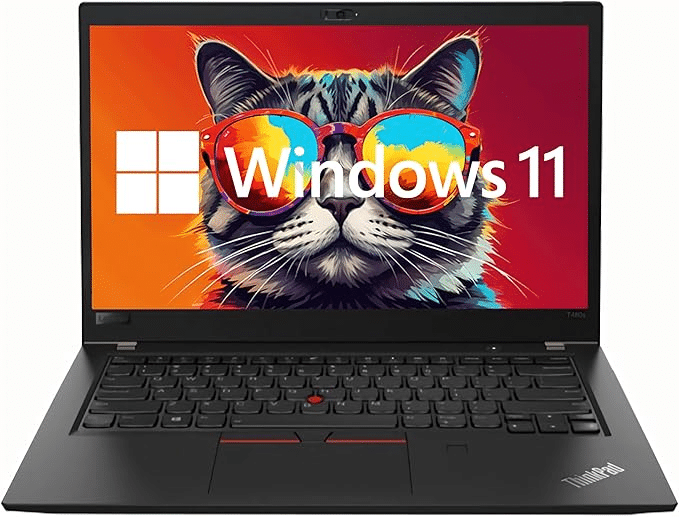
Laptops work fine for a basic homelab, but they typically cannot have their CPUs or RAM expanded. Desktops are generally more flexible.
Option 2: Mini PCs (~$150-$400)
Mini PCs have become extremely popular in the homelab community because they are compact, power-efficient, and capable. Well-regarded options include systems based on Intel N100, N305, or similar chips.
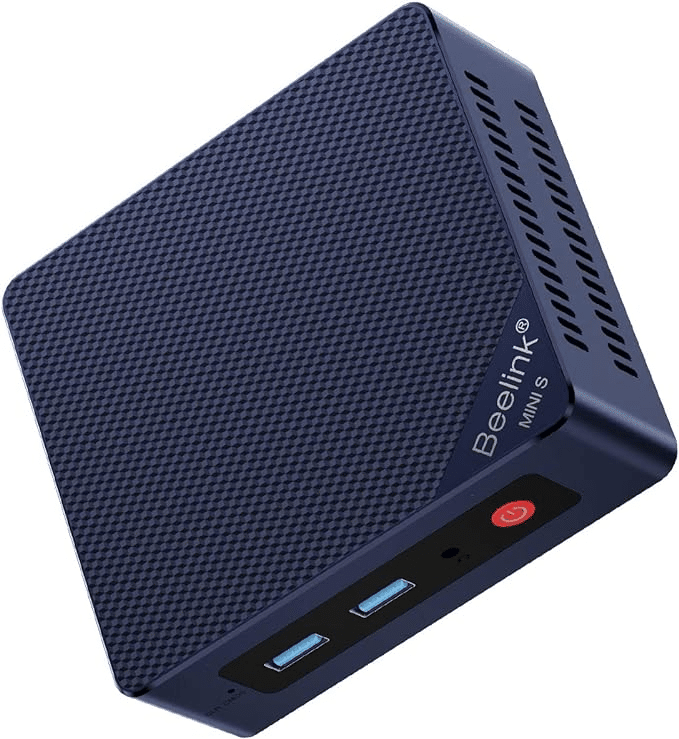
What makes mini PCs attractive for homelabs:
- Low power draw (often 10-20 watts at idle) means low electricity costs
- They run quietly, making them suitable for living spaces
- Many accept standard DDR4 or DDR5 SO-DIMM RAM, which is widely available
- They can often be found with 16-32 GB of RAM and 512 GB SSD for under $300
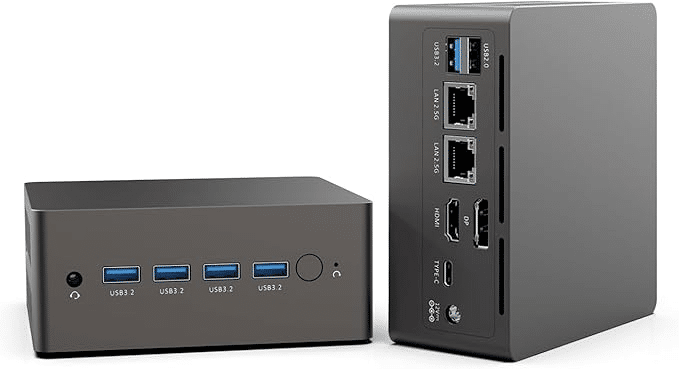
⚠️ Note: Mini PCs with Intel N-series chips (N100, N200, N305) support Intel VT-x but may have limited or no VT-d support. If you plan to do PCIe passthrough, verify VT-d support before buying.
Option 3: Used Enterprise Servers (~$200-$750)
Used enterprise servers — particularly those from the HP ProLiant, Dell PowerEdge, and Lenovo ThinkSystem lines — offer exceptional performance per dollar when bought secondhand.
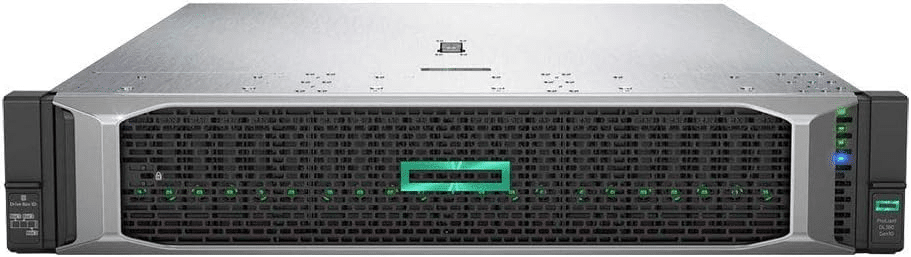
Popular models in the homelab community include:
- HP ProLiant DL360/DL380 Gen 8 and Gen 9
- Dell PowerEdge R620, R630, R720, R730
- These often come with dual 8-core or 10-core CPUs and can hold 128-256 GB of RAM
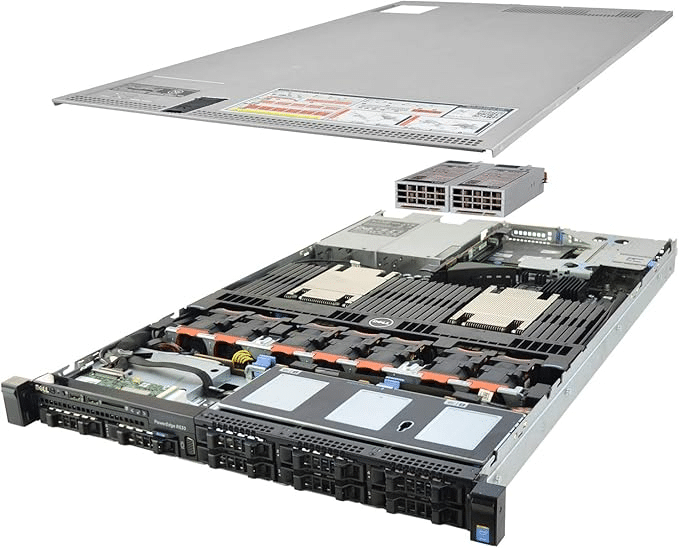
The tradeoffs with enterprise servers are real and worth knowing:
| Advantage | Disadvantage |
|---|---|
| Excellent specs for the price | Loud fans — not suitable for living spaces without modification |
| ECC RAM for data integrity | High power consumption (100-300 watts or more) |
| Expandable storage bays | Physically large and heavy |
| Designed for 24/7 operation | May require specific proprietary components |
Enterprise servers are excellent for basement or garage labs where noise and power draw are not concerns. They are generally not a good fit as a first homelab if you are sharing a living space.
Option 4: Single-Board Computers (~$90-$180)
Devices like the Raspberry Pi 4 and Raspberry Pi 5 can run lightweight services and are excellent for specific learning tasks. However, they have important limitations for a homelab hypervisor:
- ARM-based CPUs mean that many x86-only software packages will not run
- Limited RAM (typically 4-16 GB)
- Not suitable for running multiple full VMs
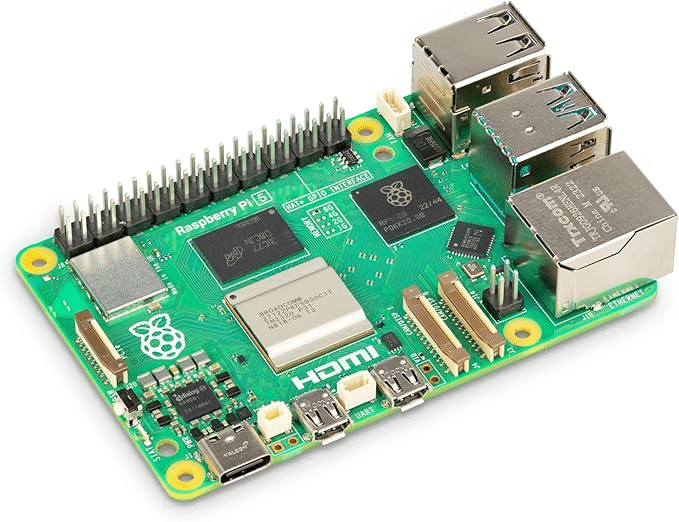
Single-board computers are a good supplement to a homelab — for example, running Pi-hole as a dedicated DNS filter — but they are not a replacement for a proper hypervisor host.
Quick Hardware Comparison Summary
| Hardware Type | Best For | Main Limitation |
|---|---|---|
| Repurposed desktop/laptop | Zero-cost start | May be underpowered |
| Mini PC (N100/N305) | Quiet, efficient home use | Limited PCIe/expansion |
| Used enterprise server | Maximum power per dollar | Noisy, high power draw |
| Single-board computer | Lightweight services | Not a hypervisor host |
Part 3: Understanding Hypervisors
A hypervisor is software that lets one physical machine run multiple operating systems at the same time. Each operating system runs inside its own virtual machine (VM), isolated from the others but sharing the physical hardware underneath.
This is the core concept that makes a homelab powerful: instead of needing five separate computers to run five different servers, you can run all five as virtual machines on a single physical host.
Type 1 vs Type 2 Hypervisors
Hypervisors are divided into two categories:
Type 1 Hypervisor (Bare-Metal)
A Type 1 hypervisor installs directly onto the hardware, with no underlying operating system between it and the hardware. This makes it more efficient and more stable.
- Examples: Proxmox VE, VMware ESXi, Microsoft Hyper-V
- Best for: Dedicated homelab machines running 24/7
- The hypervisor itself is the operating system
Type 2 Hypervisor (Hosted)
A Type 2 hypervisor runs as an application on top of an existing operating system like Windows or macOS. This is easier to get started with but adds overhead.
- Examples: VirtualBox, VMware Workstation, Parallels
- Best for: Casual testing, development, or machines you also use as a daily desktop
- More resource overhead because both the host OS and VMs share resources
| Recommendation for Homelabs: If you have a dedicated machine that will serve as your lab host, use a Type 1 hypervisor. If you are experimenting on your daily-use computer, a Type 2 like VirtualBox is a fine way to start before committing to dedicated hardware. |
Which Hypervisor Should You Choose?
For a first homelab, the two most practical choices are Proxmox VE and VMware ESXi (now called VMware vSphere Hypervisor). Here is how they compare:
| Proxmox VE | VMware ESXi | |
|---|---|---|
| Cost | Free and open source | Free tier available; enterprise features require license |
| Operating System | Debian Linux-based | Custom VMware kernel |
| Web Interface | Yes, built in | Yes, built in |
| Container Support | Yes (LXC containers) | No native containers |
| Community | Very active homelab community | Large enterprise community |
| Learning Value | High for Linux/enterprise skills | High for VMware-specific skills |
| Recommended For | Most first homelabs | Those pursuing VMware certifications |
This guide recommends Proxmox VE for most beginners. It is free, actively developed, has an excellent web interface, supports both virtual machines and containers, and has a large homelab community producing tutorials, forums, and scripts. The next section walks through installing it.
Part 4: Installing Proxmox VE
These steps assume you have a dedicated machine (your homelab host), a dedicated network, and a USB drive of at least 8 GB. The installation process takes 15-30 minutes for most users.
If you travel for work or leisure and want to know how to install Proxmox on the road, this blog will help you set up Proxmox without a dedicated network.
Step 1: Download the Proxmox VE ISO
Go to the official Proxmox download page at proxmox.com/en/downloads. Download the latest Proxmox VE ISO installer. As of this writing, Proxmox VE 8.x is the current stable version.
Only download from the official Proxmox website. Do not use third-party mirrors for the installer.
Step 2: Create a Bootable USB Drive
You need to write the ISO to a USB drive. The tool Rufus (Windows) or Balena Etcher (Windows, macOS, Linux) are both free and straightforward.
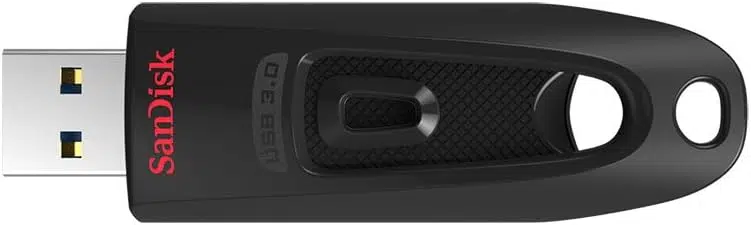
- Plug in your USB drive (8 GB minimum)
- Open Rufus or Etcher
- Select the Proxmox VE ISO you downloaded
- Select your USB drive as the target
- Click Write or Flash and wait for it to finish
⚠️ Warning: Writing to a USB drive will erase everything on it. Make sure you select the correct drive and that it does not contain any files you need.
Step 3: Boot From the USB Drive
Plug the USB drive into your homelab machine. Power it on and enter the boot menu. On most systems, you press F12, F11, F8, or Escape during startup to get the boot menu. The exact key depends on your motherboard or system manufacturer — it is usually displayed briefly on screen during POST.
Select the USB drive from the boot menu. The Proxmox installer will load.
Step 4: Run the Proxmox Installer
- Select “Install Proxmox VE” from the graphical installer menu
- Accept the End User License Agreement
- Select the target disk — this is the drive where Proxmox will be installed
- Set your country, timezone, and keyboard layout
- Set a strong root password and enter a valid email address
- Configure your network settings. Proxmox needs a static IP address on your LAN. Choose an address that is outside your router’s DHCP range to avoid conflicts. For example, if your router assigns IPs in the range 192.168.1.100-200, you could set the Proxmox host to 192.168.1.10.
- Review your settings and click Install
The installation takes about 5-10 minutes. When it finishes, the system will ask you to remove the USB drive and reboot.
Step 5: Access the Proxmox Web Interface
After the system reboots, Proxmox VE runs as a headless server. You manage it entirely through a web browser from another computer on your network.
Open a browser and navigate to the IP address you set during installation, using port 8006 and HTTPS. For example:
https://192.168.1.10:8006Your browser will show a security warning because Proxmox uses a self-signed certificate by default. This is normal for a local network resource. Proceed past the warning.
Log in with the username “root” and the password you set during installation.
Step 6: Update Proxmox After Installation
Before doing anything else, update Proxmox. Open the web interface, click on your node name in the left panel, then click “Shell” to open a terminal. Run the following commands:
apt update && apt full-upgrade -yIf you are using the free (non-subscribed) version of Proxmox, you may encounter an error about the enterprise repository. You can disable the enterprise repo and enable the free no-subscription repo by following the official Proxmox documentation at pve.proxmox.com. This is a common and well-documented step.
Part 5: What to Run in Your Homelab
This is often the most exciting question for new homelab builders. The answer depends on what you want to learn or accomplish, but there are a handful of services that offer high learning value and genuine everyday utility.
The list below covers the most commonly recommended starting points, organized by category.
Foundational Services (Start Here)
Pi-hole — Network-Level Ad Blocking and DNS
Pi-hole is a DNS sinkhole that blocks ads and trackers at the network level, before they ever reach any device on your network. It runs as a lightweight container or virtual machine and is one of the most popular first services for homelab beginners.
What you will learn: DNS basics, how ad blocking at the DNS layer works, basic network configuration, and how to point your router’s DNS to a custom server.
- Resources needed: 512 MB RAM, 1 CPU core — can run as an LXC container on Proxmox
- Official site: pi-hole.net
Home Assistant — Home Automation
Home Assistant is an open-source home automation platform that runs locally on your hardware. It can integrate with hundreds of smart home devices and gives you full control over your data — nothing is sent to a third-party cloud unless you choose to enable it.
What you will learn: YAML configuration, REST APIs, home network device communication, and the basics of automation logic.
- Resources needed: 2 GB RAM, 2 CPU cores — runs well as a VM or dedicated mini PC
- Official site: home-assistant.io
Nginx Proxy Manager — Reverse Proxy with a Web UI
A reverse proxy sits in front of your services and routes incoming requests to the right destination. Nginx Proxy Manager gives you this capability through a simple web interface, without needing to write Nginx configuration files by hand.
What you will learn: How reverse proxies work, SSL certificate management, subdomain routing — all foundational skills for web infrastructure and DevOps.
- Resources needed: 512 MB RAM, 1 CPU core — runs well as a Docker container or LXC
Learning and Development Services
A Linux VM — The Core Learning Environment
If you want to learn Linux system administration, the single most valuable thing you can do is spin up a Linux virtual machine and use it. Popular choices for beginners include Ubuntu Server, Debian, and Rocky Linux (a community rebuild of Red Hat Enterprise Linux).
What you will learn: File system navigation, user and permission management, package installation, service management with systemd, firewalls, and more. These are the foundational skills for most IT careers.
- Resources needed: 2 GB RAM, 2 CPU cores for a basic learning VM
Gitea — Self-Hosted Git Server
Gitea is a lightweight, self-hosted Git service with a web interface similar to GitHub. Running your own Git server teaches you how version control infrastructure works and gives you a private repository for personal projects.
What you will learn: Git server administration, webhooks, repository management, and the concepts behind platforms like GitHub and GitLab.
- Official site: gitea.com
Portainer — Docker Container Management UI
Portainer is a web-based management interface for Docker containers. If you plan to run services in containers (which is common and practical), Portainer makes it much easier to manage them through a visual interface while you are still learning the Docker CLI.
What you will learn: Container concepts, image management, networking between containers, and the basics of Docker Compose.
Networking and Security Services
pfSense or OPNsense — Open Source Firewall and Router
pfSense and OPNsense are full-featured open source firewall and router distributions. Running one as a virtual machine teaches you how enterprise-grade firewall rules, VLANs, and VPNs work in practice.
OPNsense is a fork of pfSense and is actively developed with a modern interface. Both are highly capable.
What you will learn: Firewall rule creation, VLAN configuration, DHCP and DNS management, VPN setup (OpenVPN, WireGuard), and traffic monitoring.
- Resources needed: 1 GB RAM, 2 CPU cores minimum; 2+ network interfaces for proper segmentation
Wazuh — Open Source SIEM
Wazuh is an open-source security information and event management (SIEM) platform. It collects and analyzes security events from across your infrastructure. Running Wazuh in your homelab is excellent preparation for security operations roles.
What you will learn: Log aggregation, security event analysis, threat detection rules, and the fundamentals of how enterprise SOCs monitor for threats.
- Resources needed: 4-8 GB RAM — this is a heavier service and requires meaningful hardware
Storage and Media Services
TrueNAS (formerly FreeNAS) — NAS Operating System
TrueNAS is an operating system designed specifically for network attached storage. It uses the ZFS file system, which provides data integrity checking, snapshots, and efficient compression.
What you will learn: ZFS concepts, RAID levels, SMB and NFS share configuration, storage pool management, and backup strategies.
- Note: TrueNAS is best run on dedicated hardware or as a VM with physical disk passthrough, not on the same VM host as your other services
- Official site: truenas.com
Jellyfin — Self-Hosted Media Server
Jellyfin is an open-source media server that lets you stream your own movie, TV, and music collection to any device on your network. It is a free alternative to Plex.
What you will learn: Media server architecture, transcoding concepts, network streaming, and how to organize large media libraries.
- Official site: jellyfin.org
Summary: Services by Learning Goal
| Goal | Recommended Service | Difficulty |
|---|---|---|
| Learn Linux basics | Ubuntu Server VM | Beginner |
| Understand DNS | Pi-hole | Beginner |
| Home automation | Home Assistant | Beginner |
| Learn firewalls/networking | OPNsense | Intermediate |
| Learn containers/DevOps | Portainer + Docker | Intermediate |
| Learn version control infra | Gitea | Intermediate |
| Security monitoring | Wazuh | Intermediate-Advanced |
| NAS and ZFS storage | TrueNAS | Intermediate |
| Media streaming | Jellyfin | Beginner |
Part 6: Networking Your Homelab
Networking is one of the most valuable things to learn through a homelab, and getting the basics right from the start saves a lot of troubleshooting later.
Basic Network Setup
At a minimum, your homelab needs to be connected to your home network so you can access your VMs and services from other devices. Here is the standard setup:
- Your homelab host connects to your home router via Ethernet (not Wi-Fi — wired connections are more reliable and faster for a server)
- Proxmox creates a virtual network bridge (called vmbr0 by default) that connects your VMs to your physical network
- Each VM gets its own IP address, either assigned by your router’s DHCP server or set as a static IP
VLANs: Network Segmentation
A VLAN (Virtual Local Area Network) lets you divide one physical network into multiple logical networks. This is a key enterprise networking concept and is worth learning in your homelab.
A practical example: you might put your IoT devices (smart bulbs, cameras, thermostats) on one VLAN and your computers on another, with firewall rules preventing the IoT devices from reaching your computers. This is exactly how enterprise networks manage separation between departments or device types.
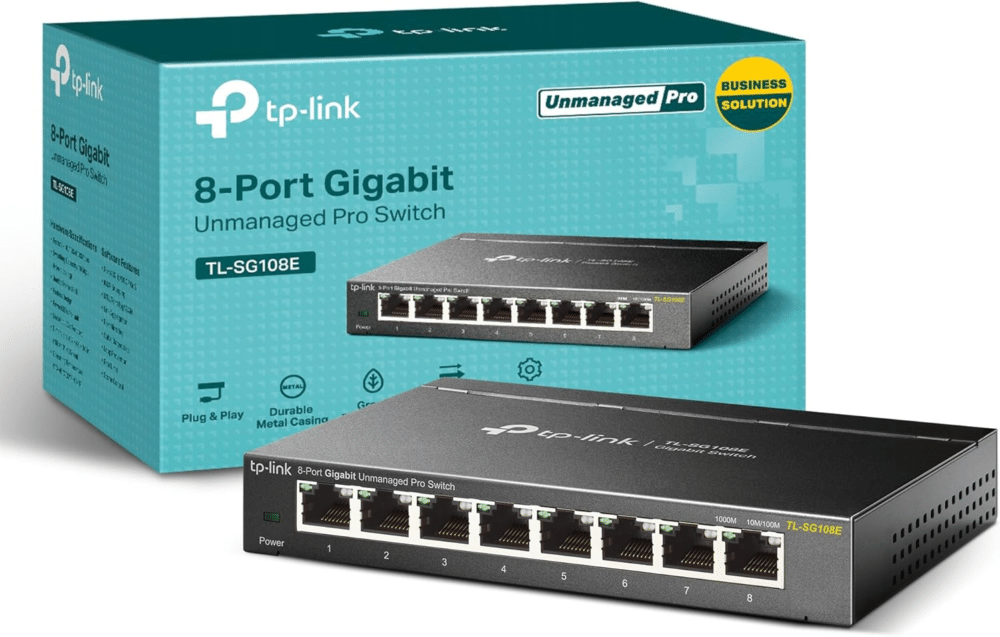
To use VLANs, you need a managed switch that supports 802.1Q VLAN tagging. Entry-level managed switches from brands like TP-Link, Netgear, and MikroTik are available for under $50 and are popular in homelab setups.
Running a Firewall VM
Running a VM-based firewall (like OPNsense) in front of your homelab services gives you control over what traffic can reach what. This is not strictly required for a first homelab, but it is a common next step once you have your basic services running.
For PCIe passthrough of a network card to a firewall VM, you need a CPU and motherboard that support VT-d (Intel) or AMD-Vi.
Part 7: Storage Basics
Storage in a homelab has two sides: where you store the hypervisor and VM disk images (local storage), and where you store files and data you want to access across your network (network storage).
Local Storage in Proxmox
By default, Proxmox creates a local storage pool on the drive you installed it on. VM disk images are stored there as files. For most beginners, this is all you need to start.
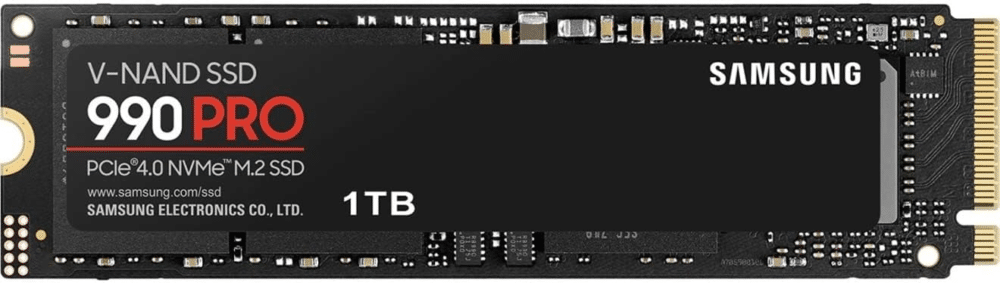
As you expand, you may want to add additional drives and create separate storage pools — for example, a fast NVMe drive for actively-used VMs and a larger HDD for backups.
ZFS in Proxmox
Proxmox has native support for ZFS, a file system designed with data integrity as a primary goal. ZFS provides:
- Checksumming: every block of data is verified against a checksum, so silent data corruption is detected automatically
- Snapshots: you can take instant, low-cost snapshots of a dataset and roll back to them if something goes wrong
- Compression: ZFS can compress data transparently, often saving 20-40% of space with no performance cost
ZFS requires more RAM than traditional file systems — a common guideline is 1 GB of RAM per 1 TB of storage. If you are running on 8 GB of RAM total, ZFS for a large pool may not be practical. For smaller setups or SSDs, ZFS works well even with modest RAM.
Backups
Backing up your VMs is important, even in a homelab. Proxmox includes a built-in backup tool called Proxmox Backup Server (PBS), which can run as its own VM. It supports incremental backups, deduplication, and scheduled backup jobs.
At minimum, set up a weekly backup of any VM that took significant time to configure. This is also good practice for building backup discipline that transfers to professional environments.
Part 8: Keeping Your Lab Safe and Stable
Your homelab is your environment to learn and experiment, but a few basic practices will save you from unnecessary frustration.
Strong Passwords and SSH Keys
Use a strong, unique password for your Proxmox root account. If you expose any services to the internet, use SSH keys instead of passwords for authentication, and disable password-based SSH login.
A password manager (Bitwarden is a popular self-hosted option) is worth running in your homelab for managing credentials across your infrastructure.
Keep Software Updated
Apply updates regularly. Proxmox, your VMs, and any services you run will periodically release security patches. Set a schedule — even once a month is vastly better than never. Running outdated software with known vulnerabilities is the most common way homelab services get compromised.
Do Not Expose Services Directly to the Internet Without a Plan
It is tempting to make your homelab services accessible from outside your home network, but doing this carelessly exposes you to real risk. Before exposing anything to the internet:
- Use a reverse proxy with SSL certificates (Nginx Proxy Manager makes this manageable)
- Consider a VPN (WireGuard is fast, modern, and widely supported) so you access your homelab as if you are on your local network
- Enable fail2ban or similar tools to block brute-force login attempts
Snapshot Before Making Big Changes
Proxmox makes it easy to take a snapshot of a VM before making significant configuration changes. If something breaks, you can roll back in seconds. Build this habit early — it will save you hours of troubleshooting.
Part 9: Where to Go Next
Building a homelab is an ongoing journey, not a one-time project. Once you have your first services running, there is a natural progression of skills to explore.
Learning Paths from Your Homelab
- Infrastructure as Code: Learn Terraform and Ansible to manage your homelab configuration as code. This is a core DevOps skill.
- Kubernetes: Once you are comfortable with containers and Docker, running a small Kubernetes cluster (k3s is lightweight and homelab-friendly) teaches you the orchestration skills that are in high demand.
- Monitoring and Observability: Set up Grafana and Prometheus to monitor your homelab’s resource usage and build dashboards. This is directly applicable to production work.
- Networking Certifications: Your homelab is an excellent study companion for CompTIA Network+, Cisco CCNA, or Juniper certifications.
- Security: Explore threat detection with Wazuh, learn how to run vulnerability scans with OpenVAS, and practice incident response.
Community Resources
The homelab community is active, generous, and helpful. These are well-established resources:
- r/homelab and r/selfhosted on Reddit: Large communities with build showcases, troubleshooting help, and hardware advice
- The Proxmox Community Forum at forum.proxmox.com: The official forum with detailed technical discussion
- Awesome-Selfhosted on GitHub: A curated list of self-hosted software with hundreds of options across every category
- The Homelab subreddit wiki: Beginner guides, hardware recommendations, and FAQs
💡 Tip: The most important thing is to start with what you have. A single repurposed laptop running Proxmox with one or two VMs is a real homelab and a genuine learning environment. Hardware upgrades and complexity can come later. The goal is hands-on experience, and you can start getting that today.
Build Your First Homelab and Start Learning Today
Building your first homelab is one of the most direct investments you can make in your technical skills. By choosing the right hardware for your budget, installing a Type 1 hypervisor like Proxmox VE, and running services that match your learning goals, you create a personal environment where real skills develop through real experience.
There is no single correct way to build a homelab. The hardware choices, services, and configurations that work for someone else may not be the right fit for you. Use this guide as a framework, make decisions based on your specific situation, and do not hesitate to change course as you learn more.
Good luck with your build. The homelab community is ready to help when you get stuck.