
Learn how to install Proxmox VE 9.1 on an Intel NUC7CJYHN, troubleshoot network connectivity without a dedicated router, and access your homelab web UI — all while on the road.
Overview
Building a homelab doesn’t require a server rack, a dedicated network switch, or even a home office. This guide walks through exactly how I installed Proxmox VE 9.1 bare metal on an Intel NUC7CJYHN while traveling — including a real-world workaround for connecting to the internet without standard WiFi tools or a dedicated router.
If you’ve been curious about virtualization and want to start running your own virtual machines at home (or on the road), this is a great beginner project.
Install Proxmox VE 9.1 bare-metal on an Intel NUC7CJYHN, resolve network connectivity without a dedicated router, and access your homelab web UI from any browser on your network.
Total time: 2 hours
Download Proxmox VE 9.1
Download the Proxmox VE 9.1 ISO from proxmox.com and verify the file integrity using its SHA256 checksum before continuing.
Flash the ISO to a USB Drive
Use Balena Etcher (recommended) or the Terminal dd command on macOS to flash the Proxmox ISO to a USB drive of at least 2GB.
Boot from USB on the Intel NUC
Plug the USB into your NUC, power it on, and press F10 to select the USB drive from the boot menu using the UEFI entry.
Install Proxmox VE
Run through the graphical installer, select your target disk, set a static IP, and create a strong root password.
Resolve Network Connectivity
Use iMac Internet Sharing over Ethernet to bridge your connection, then switch vmbr0 to DHCP in /etc/network/interfaces to get online.
Assign a Static IP Address
Edit /etc/network/interfaces to set a permanent static IP for vmbr0 so your Proxmox dashboard is always reachable at the same address.
Install wpasupplicant
With internet access established, run apt-get install wpasupplicant to enable direct WiFi connectivity on your NUC in the future.
Access the Proxmox Web UI
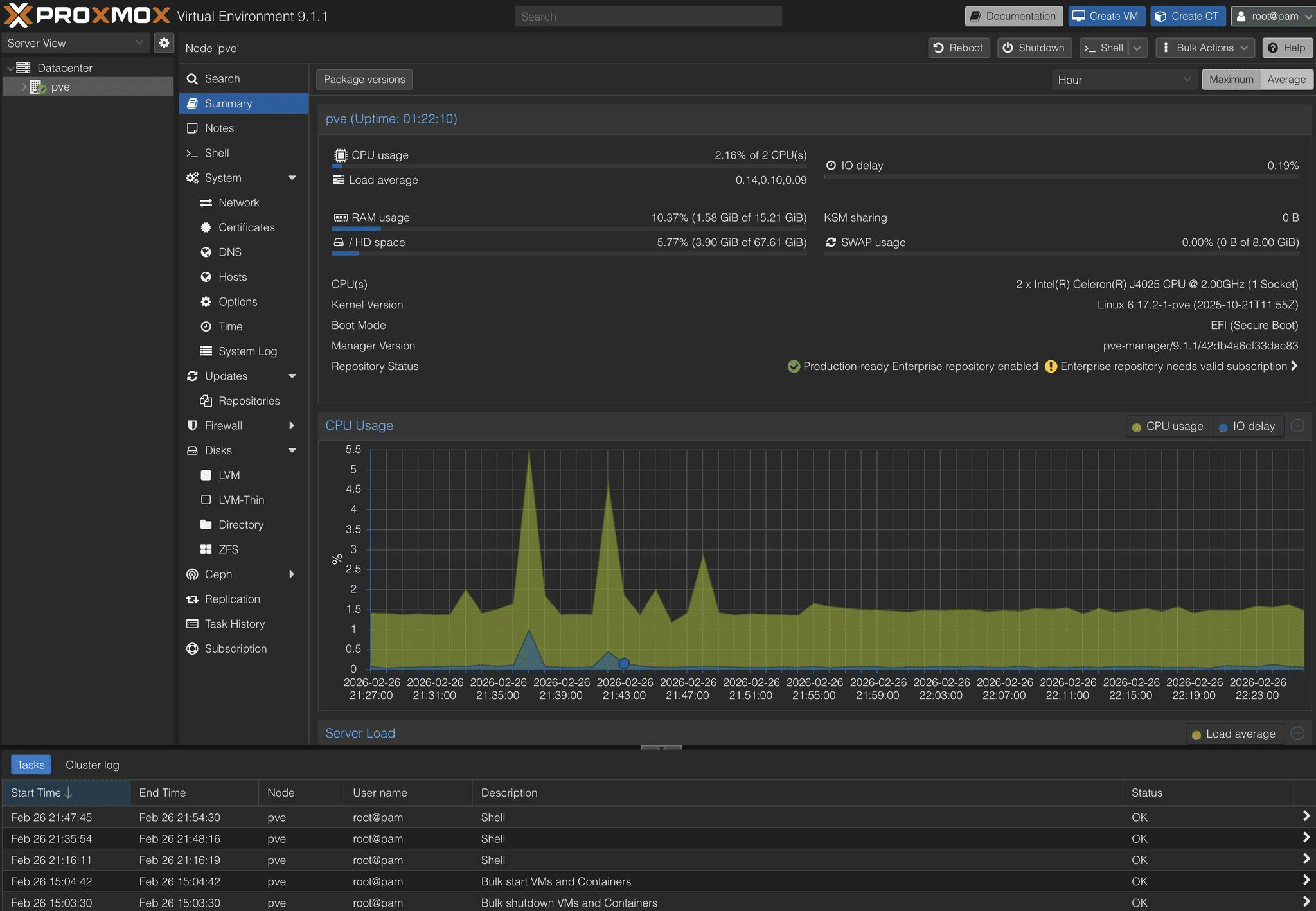
Open a browser on the same network, navigate to https://[your-NUC-IP]:8006, accept the SSL warning, and log in with root credentials.
Hardware Used
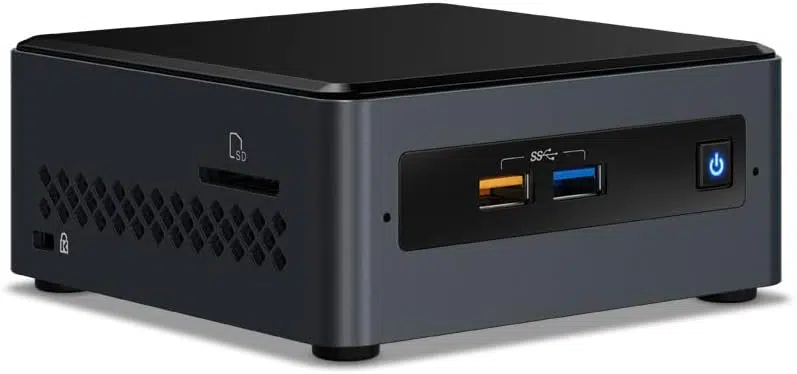
- Device: Device: Intel NUC7CJYHN
- RAM: 16GB DDR4 SO-DIMM (upgraded from 8GB)
- Storage: Storage: 256GB SATA SSD
- OS Replaced: OS Replaced: Windows 10 Pro → Proxmox VE 9.1
💡 Tip: The Intel NUC is a fantastic entry-level homelab machine. It’s small, power-efficient, and powerful enough to run several VMs simultaneously.
Step 1: Download Proxmox VE 9.1 (or later)
Head to proxmox.com/en/downloads and grab the Proxmox VE 9.1-1 ISO (or later). The file is approximately 1.83 GB.
Once downloaded, verify the file integrity using its SHA256 checksum to make sure the download wasn’t corrupted:
# Expected checksum:
6d8f5afc78c0c66812d7272cde7c8b98be7eb54401ceb045400db05eb5ae6d22

# Verify on Linux or macOS:
sha256sum proxmox-ve_9.1-1.iso
💡 Tip: If the checksum output matches the one above, your download is good. If it doesn’t match, re-download the ISO before continuing.
Step 2: Flash the ISO to a USB Drive (macOS)
You’ll need a USB drive of at least 2GB. There are two ways to flash the Proxmox ISO on a Mac:
Option 1: Balena Etcher (Recommended for Beginners)
Download Balena Etcher from etcher.balena.io, install it, select your Proxmox ISO, select your USB drive, and click Flash. It handles everything automatically and is the easiest route if you just want to get it done.
Option 2: Terminal with dd (Advanced)
If you prefer the command line:
# Identify your USB drive
diskutil list

# Unmount it (replace disk2 with your actual disk identifier)
diskutil unmountDisk /dev/disk2

# Flash the ISO
sudo dd if=~/Downloads/proxmox-ve_9.1-1.iso of=/dev/rdisk2 bs=4m
⚠️ Note: Use rdisk (raw disk) instead of disk for faster transfer speeds. Press Ctrl+T to check progress. When the flash completes, macOS will say the disk is unreadable. This is normal. Click Ignore.
Step 3: Boot from USB on the Intel NUC
- Plug the USB drive into your NUC and power it on
- Press F10 on startup for the one-time boot menu, or navigate to advanced disk startup to force your computer to boot from a USB
- Select the USB drive using the UEFI entry
- If you need to disable Secure Boot first, press F2 to enter the BIOS
💡 Tip: UEFI boot mode is required for Proxmox VE. If you only see a legacy/CSM option, make sure UEFI is enabled in your BIOS settings.
Step 4: Install Proxmox VE
Proxmox uses a graphical installer that walks you through the process. The key things to configure during installation:
- Select your target disk (your 256GB SSD in this case)
- Set a static IP address, subnet mask, gateway, and DNS
- Set a strong root password and a valid email address
Once installation completes, the NUC will reboot. Remove the USB drive when prompted.
Step 5: Resolve Network Connectivity (No Dedicated Router)
This was the trickiest part of doing this on the road. After installation, all network interfaces showed as DOWN:
- nic0 (ethernet): no cable connected
- wlo2 (WiFi): wpa_supplicant and iw were not installed
- vmbr0 (Proxmox bridge): down because it depends on nic0
The solution FOR ME WHILE TRAVELING: use iMac Internet Sharing over Ethernet to bridge the NUC’s connection through the iMac’s WiFi (connected to a phone hotspot).
On the iMac:
- Connect the iMac to WiFi (via phone hotspot)
- Connect an ethernet cable between the iMac and the NUC
- Go to System Settings (on the iMac) → General → Sharing → Internet Sharing
- Share from: WiFi — To: Ethernet / Thunderbolt Ethernet
- Enable Internet Sharing
macOS will automatically assign the NUC an IP address in the 192.168.x.x range via DHCP.
On Proxmox: Switch vmbr0 to DHCP
Edit the network interfaces file:
nano /etc/network/interfaces⚠️ Note: Once you start Proxmox, only vi or nano will be installed. I prefer vim; however, please feel free to use whichever one is the easiest for you.
Update the vmbr0 section to use DHCP and remove any static IP lines:
auto lo

iface lo inet loopback

iface nic0 inet manual

auto vmbr0
iface vmbr0 inet dhcp
        bridge-ports nic0
        bridge-stp off
        bridge-fd 0
Save the file, then bring the interface up:
ifdown vmbr0 && ifup vmbr0Verify connectivity:
ip a show vmbr0
ping 8.8.8.8
💡 Tip: If ping 8.8.8.8 returns replies, you’re connected. You should see an IP address assigned to vmbr0 in the ip a output.
Step 5b: Reassign a Static IP Address (Recommended)
Using DHCP to get connected is a great temporary fix, but it’s not ideal for a homelab long-term. Every time your NUC reboots or your network changes, it may get assigned a different IP address — which means you’d have to hunt down the new address just to access the Proxmox web UI.
Once you have a working internet connection, assign a static IP so your Proxmox dashboard is always reachable at the same address.
Open the network interfaces file:
vim /etc/network/interfacesChange vmbr0 back to static and add your IP details:
auto vmbr0
iface vmbr0 inet static
        address 192.168.1.100/24
        gateway 192.168.1.1
        bridge-ports nic0
        bridge-stp off
        bridge-fd 0
⚠️ Note: Replace 192.168.1.100 with an available IP on your network, and 192.168.1.1 with your gateway (usually your router’s IP). Then run ifdown vmbr0 && ifup vmbr0 to apply the change.
Step 6: Install wpasupplicant for Future WiFi Use
Now that you have internet access via the iMac bridge, install wpasupplicant so your NUC can connect directly to WiFi in the future:
apt-get update && apt-get install wpasupplicant -yTo connect to a WPA2 network (like a phone hotspot) directly:
wpa_passphrase "HotspotName" "password" > /etc/wpa_supplicant/hotspot.conf
wpa_supplicant -B -i wlo2 -c /etc/wpa_supplicant/hotspot.conf
dhclient wlo2
⚠️ Note: Replace HotspotName and password with your actual network name and password. This stores the config in plain text, so only use it on trusted private networks.
Step 7: Access the Proxmox Web UI
From any browser on the same network, navigate to:
https://192.168.x.x:8006Replace 192.168.x.x with the actual IP address assigned to your NUC. You can find it by running ip a show vmbr0 on the Proxmox console.
- Accept the SSL certificate warning. This is expected on a self-signed certificate and is safe on your local network
- Log in with username: root and the password you set during installation
💡 Tip: Bookmark this address! This is your Proxmox dashboard where you’ll create and manage all your virtual machines going forward.
Wrapping Up
You should now have a fully functional Proxmox VE homelab running on an Intel NUC — even without a dedicated router or traditional home network setup. The iMac Internet Sharing trick is a great example of the kind of creative problem-solving that sysadmin work often requires.
From here, your next steps might include:
- Creating your first VM (try Ubuntu Server or Debian as a starting point)
- Setting up a persistent WiFi connection on Proxmox so you don’t need the iMac bridge
- Exploring containers with LXC inside Proxmox
- Setting up a static IP so your Proxmox web UI is always at the same address
Click here if you would like to learn more about building a homelab.